Maya Uv Packing May 2026
Maya’s primary automated tools are found in the UV Editor under the "Modify" and "Polygons" menus. The Layout command is the first line of defense. It offers basic controls: "Along U," "Along V," or "Into Square" directions, and options for rotating shells to fit more efficiently ("Prefer: None," "Along U," "Along V," or "Minimize Rotation"). Its "Spacing" parameter determines the padding between shells—a crucial setting to prevent pixel bleeding between islands when textures are mipmapped or filtered.
In the realm of 3D computer graphics, the journey from a raw polygonal model to a textured, lifelike asset is paved with technical and artistic decisions. Among the most critical, yet often misunderstood, of these steps is the creation of UV maps—the process of projecting a 3D model’s surface onto a flat, 2D coordinate system. While the initial projection is the act of cutting and flattening the 3D geometry into 2D "UV shells," the subsequent step of UV packing is where efficiency, texture resolution, and production practicality are truly determined. Within Autodesk Maya, UV packing is not a mere automated button-press; it is a strategic, often manual, optimization that balances competing demands: maximizing texel density, minimizing wasted texture space, and preserving the logical relationship between shells for easier texturing. This essay provides a detailed examination of UV packing in Maya, exploring its workflow, its algorithmic underpinnings, its artistic nuances, and its profound impact on the final rendered result. The Foundational Concepts: Texels, Shells, and the Unit Square Before delving into packing techniques, one must understand the core currency of UV space: the texel (texture element). In a 2D texture map (e.g., a 1024x1024 pixel image), each pixel corresponds to a location in the 0 to 1 UV coordinate square. The density of texels assigned to a given area of a 3D model—known as texel density —directly determines the sharpness and clarity of the applied texture. A UV shell that occupies a larger area of the 0-1 square will receive more texels, resulting in higher detail; a smaller shell will receive fewer texels, appearing blurrier or more pixelated. maya uv packing
A master of UV packing does not simply fill the 0-1 square. They sculpt the canvas upon which all color, roughness, and detail will be painted. They ensure that every texel earns its place, that every pixel contributes to the final image, and that the texture artist who follows them is greeted with a layout that is not merely efficient, but elegant. In the invisible architecture of a 3D asset, a well-packed UV map is a silent triumph—a piece of technical art that the audience will never see, but without which, they would see only blur. Maya’s primary automated tools are found in the
The more sophisticated tool (available in newer Maya versions) implements algorithms similar to those found in dedicated UV software. It often yields tighter packing with less wasted space than Layout . However, both algorithms operate on a simple principle: treat each shell as a bounding rectangle, sort them by size (largest first), and place them into the 0-1 square. This "shelf-packing" approach is fast but can be naive, often ignoring the irregular boundaries of shells or the need to group shells by material or surface continuity. While the initial projection is the act of
The goal of UV packing, therefore, is to arrange the collection of UV shells (the individual flattened pieces of the model) within the 0-1 texture square to achieve a consistent texel density across the entire model while using as much of the available texture resolution as possible. Empty space in the UV square is wasted resolution—a luxury often denied in video game development, visual effects, and real-time rendering contexts where texture memory is a finite, precious resource. Maya provides a tiered toolkit for UV packing, ranging from the fully automatic to the meticulously manual. A typical professional workflow involves a combination of these methods.
 『インストラクターのネタ帳』では、2003年10月からMicrosoft Officeの使い方などを紹介し続けています。
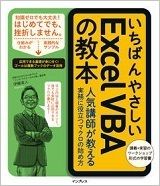
『インストラクターのネタ帳』を運営する伊藤潔人が、初めて書かせていただいた書籍です↓↓
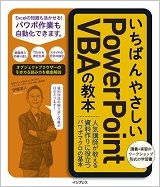
 PowerPoint VBA本は、実はオブジェクトブラウザーの使い方を徹底的に解説した本です↓↓
 日経BP社から出版された、Excel VBAユーザー向けのPython超入門書です↓↓
 上記のExcel VBAユーザー向けのPython超入門書の、元になったキンドル本です↓↓
 Pythonの文字列フォーマットの基本をキンドル本としてまとめました↓↓
 小数とPythonのdecimalモジュールの基本をキンドル本としてまとめました↓↓
 数式を使った条件付き書式設定が苦手な方に向けたKindle本を書きました↓↓
 Pythonの外部ライブラリOpenPyXL(オープンパイエクセル)の入門書を、Excel VBAユーザーに向けに書きました↓↓
 図形を操作するExcel VBAの基本を解説したキンドル本を書きました↓↓
 グラフを操作するExcel VBAの基本を解説したキンドル本も出しました↓↓
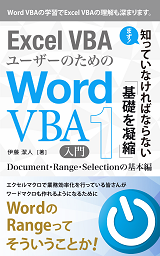
 Excel VBA経験者の方に向けて、Word VBAの基本をキンドル本にしました↓↓
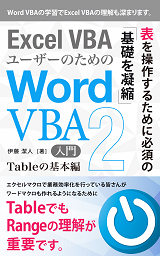
 Excel VBAユーザーの方を対象として、Wordの表をVBAで操作する基礎をまとめました↓↓
- 「Excel 2007(エクセル2007)」の記事一覧
- Excel 2013・2010・2007でアクティブシートのみ再計算するには? (2015.04.07)
- Excel 2013・2010・2007で置換は? (2014.05.21)
- Excel 2013・2010・2007でR1C1参照形式にする (2013.12.12)
- Excel 2010・2007のピボットテーブルでページの表示は? (2013.10.30)
- Excel 2013・2010・2007でシートをコピーする (2013.10.17)
- Excel 2013・2010・2007でクリアは? (2013.09.20)
- 改ページプレビューボタンの表示方法 (2013.03.28)
- Excel 2013・2010・2007で可視セルの選択は? (2013.03.21)
- Excel 2013・2010・2007の改ページプレビュー解除方法 (2013.03.11)
- 月間スケジュール表を作成する (2012.10.19)
- 非表示シートにパスワードを-ブックの保護 (2012.10.16)
- 年間スケジュール表の作り方 (2012.10.09)
- Excel 2010・2007でスタイルの変更は? (2012.06.29)
- 非表示のシートを一括削除する-Officeボタン-配布準備-ドキュメント検査 (2012.03.16)
- Excel 2010・2007でセル幅が変更できない-シートの保護 (2011.12.21)
- Excel 2010・2007で反復計算は? (2011.12.19)
- Excel 2010・2007でファイル・ブックを並べて表示する整列するには? (2011.12.15)
- 数式バーで編集中にマウスホイールでシートがスクロールできない (2011.12.13)
- エクセルのオブジェクトの選択と表示コマンド (2011.11.02)
- 拡張子「.xlsb」の有利な点 (2011.11.01)
- 拡張子「.xlsm」「.xlsx」「.xlsb」の使い分け (2011.10.28)
- マクロ・VBAのコードが削除されないように-ファイルの保存形式 (2011.10.26)
- 次の機能はマクロなしのブックに保存できませんとは (2011.10.24)
- Excel 2010・2007でカメラボタンは? (2011.09.14)
- 日付のオートフィルタを2003までのように-オートフィルターメニューで日付をグループ化する (2011.08.05)
- Excel 2010・2007でブックの共有は?−校閲タブ (2011.06.16)
- ウィンドウ枠の固定解除をできないように−ブックの保護 (2011.06.08)
- セルのロックがExcel2010・2007では使いやすく (2011.06.06)
- Excel 2010・2007でアウトラインの設定は? (2011.05.16)
- 横方向に結合のショートカットキーは? (2011.03.14)
- Excel 2010・2007でヘッダー・フッターは?−ページレイアウトタブ (2011.02.25)
- 表示拡大・縮小のショートカットキー−クイックアクセスツールバー (2011.02.07)
- Excel 2010・2007の数式バーで文字が切れる−数式バーの折りたたみ・展開 (2011.02.01)
- 横方向に結合とは (2010.12.09)
- 小数点位置固定モードの解除−小数点位置を自動的に挿入する (2010.10.19)
- 読み取り専用にする−読み取り専用の設定/解除ボタン (2010.07.09)
- Excel 2007でオートフォーマットは? (2010.05.14)
- Excel 2007で可視セルの選択ボタンは? (2010.05.07)
- アラビア語等を追加したときの変化 (2010.04.01)
- Excel2007で列を左から右にするには?−右から左へ書き進む文書ボタン (2010.03.31)
- Excel 2007で区切り位置指定ウィザードは? (2010.03.08)
- Excel 2007でピボットテーブルの小計行を再表示する (2010.03.02)
- シート名変更のショートカットキーは?−QATの利用 (2009.12.28)
- Excel 2007では縦書きにするのが簡単に (2009.12.17)
- 先頭行の固定・先頭列の固定の仕様 (2009.10.26)
- Excel2007でブックの比較と反映は?−リボンにないコマンド (2009.10.22)
- Excel2007で自動バックアップをとる (2009.09.30)
- Excel2007で枠線の色変更−次のシートで作業するときの表示設定 (2009.08.17)
- Excel2007でシートの保護は?−シート見出しのショートカットメニュー (2009.07.21)
- Excel2007でソルバーアドインはどこに?−データタブ-分析グループ (2009.07.08)
- Excel2007でオートフィルタの設定は? (2009.06.18)
- Excel2007のアドインインストール方法 (2009.06.17)
- Excel 2007でシート見出しを非表示に (2009.06.11)
- CSV形式に変換したい−Excel2007 (2009.06.08)
- リボンからワークシートを挿入するには?−ホーム-セル-挿入 (2009.06.03)
- Excel2007でシートの追加−ワークシートの挿入タブ (2009.05.22)
- Excel2007でウィンドウ-表示しないは? (2009.05.16)
- Excel2007でオートコンプリート設定はどこに (2009.05.08)
- Excel2007でエラーチェック機能をOffにする−エラーチェックオプションボタン (2009.05.06)
- Excel2007でふりがなは?−ホームタブ-フォントグループ (2009.04.22)
- 2007で、バックグラウンドでエラーチェックを行うは? (2009.04.17)
- 書式設定ダイアログのモードレス化−Excel2007 (2009.01.27)
- セルの大きさを変更してもグラフサイズを変更しないように (2009.01.17)
- Excel2007の拡張子一覧 (2008.12.19)
- 元に戻すが保存しても使える (2008.12.12)
- Excel2007でセルを結合して中央揃え−ミニツールバー (2008.11.30)
- 2007でデータテーブルを表示する−グラフツール-レイアウト (2008.11.25)
- Excel2007でセル結合は?−ホームタブ-配置グループ (2008.11.17)
- 2007でシート見出しの色変更は? (2008.11.16)
- Excel 2007でゼロ値の表示設定はどこに? (2008.11.11)
- Excel 2007で行の挿入は? (2008.11.07)
- Excel2007で分析ツールアドインは? (2008.08.07)
- Excel2007で連続データの作成は? (2008.07.20)
- Excel2007で、セル内で編集するチェックボックスは?−セルを直接編集する (2008.07.11)
- Excel 2007ではジャンプ→セル選択が便利に (2008.07.08)
- Excel 2007でオートフィルのユーザー設定リストは? (2008.04.06)
- 2007で選択範囲に合わせるは?−列の幅の自動調整 (2008.04.04)
- 列数を256より増やしたい (2008.03.29)
- 数式をセル内に表示したり印刷したりが簡単に-数式タブ-数式の表示 (2008.02.26)
- Excel 2007で文字の割付は?−両端揃え (2008.02.24)
- Excel2007の循環参照確認方法 (2007.12.23)
- Excel 2007では図のリンク貼り付けが隠しコマンドではなくなった (2007.12.11)
- Excel2007でウィンドウ枠の固定が操作しにくい−クイックアクセスツールバー (2007.12.05)
- ×集計、○小計、自動集計?−Excel2007 (2007.11.13)
- Excel 2007ではセルの枠線・グリッド線表示切り替えが簡単に (2007.11.01)
- 数式バーの折りたたみと展開−Excel2007 (2007.10.03)
- Excel2007のステータスバー表示項目 (2007.05.23)
- ショートカットメニューでシートの非表示/再表示−Excel2007 (2007.05.04)
- Excel2007でシートの非表示/再表示−リボン (2007.05.02)
- Excel2007で罫線ツールバーは?−ホームタブ-フォントグループ (2007.04.16)
- Excel 2007の新しい関数 (2006.02.26)
- Excel 2007の仕様・上限・制限値 (2006.02.25)